

Photoshop often requires you to work with specific colors or tonal ranges within an image. You may need to change the color of clothing, adjust a background, or apply a correction to a selected range without affecting the rest of the photo.
Creating a precise mask for these tasks can take time, especially when similar colors appear across different areas of the image.
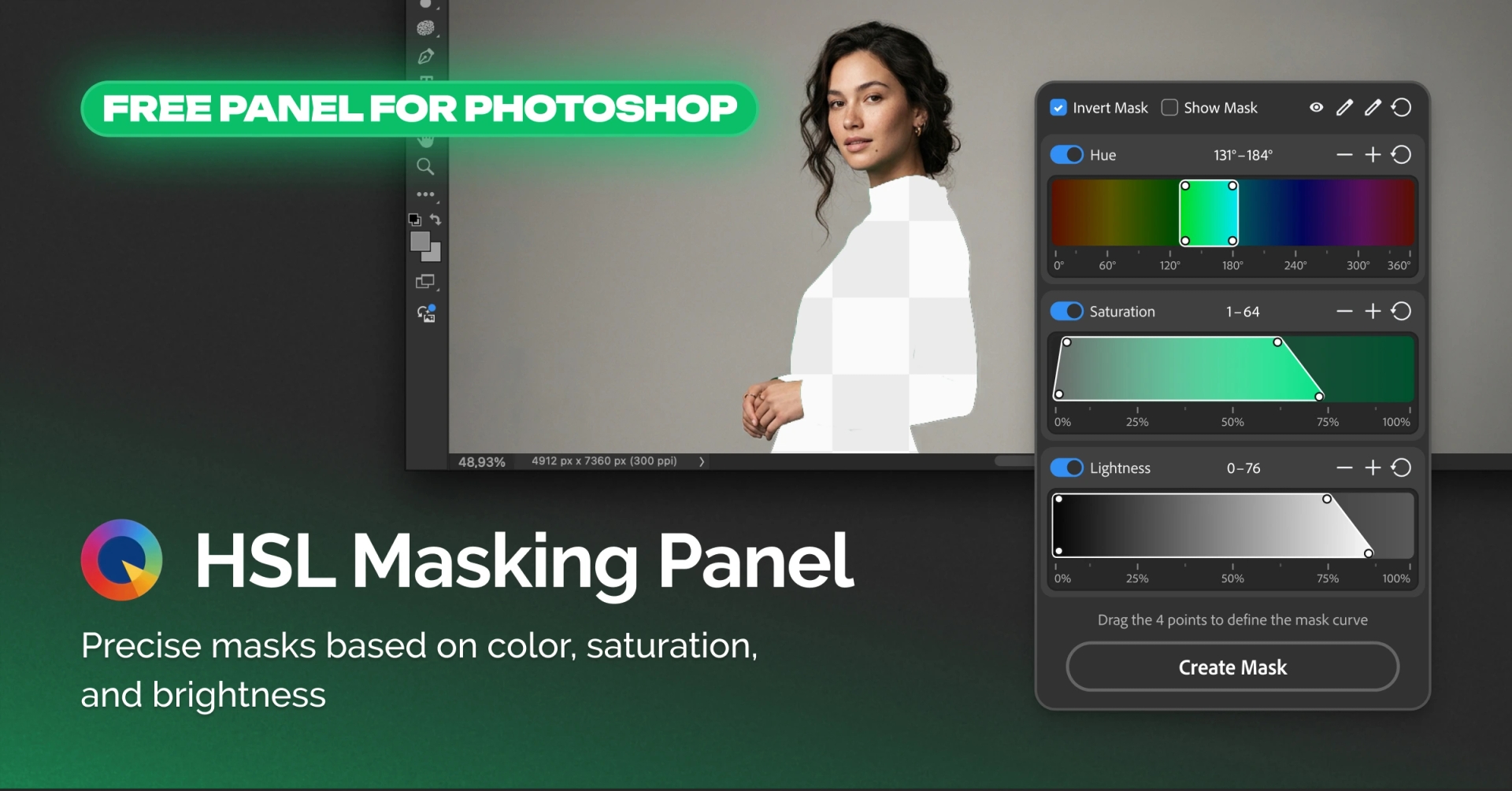
HSL Masking Panel helps you create masks based on three pixel characteristics: hue, saturation, and lightness. The panel is free and works directly in Adobe Photoshop.
How HSL Masking Panel works
HSL stands for Hue, Saturation, and Lightness:
- Hue determines the color itself;
- Saturation determines how intense the color is;
- Lightness determines how bright or dark the pixel is.
You can use each channel independently or combine them to narrow down the selected range.
For example, imagine a photo with a red dress and several other red elements. Selecting the color by hue alone may include areas you do not want to edit. Adding saturation or lightness restrictions can help narrow the selection to the desired pixels.
Adjust the range with a curve
Each HSL channel uses a four-point curve. You can use it to define the main selection range and control how gradually the selection fades into unselected areas.
This makes it possible to create softer transitions instead of a hard boundary between selected and unselected pixels.
You can also quickly expand or narrow the selected range using the + and − buttons.
Pick colors directly from the image
You do not have to determine the color range manually.
Use the eyedropper to select a color directly from your photo. The + eyedropper lets you add additional shades to the existing selection.
This is useful when an object contains several similar shades or when lighting creates variations within the same color.
Check your mask before creating it
The Show Mask option lets you preview which areas are included in the selection.
If you need to work with everything outside the selected range, use Invert Mask.
Hue, Saturation, and Lightness can also be enabled or disabled independently, and each channel can be reset when needed.
Turn your selection into a layer mask
Once the range is ready, click Create Mask.
HSL Masking Panel creates a layer mask in Photoshop, which you can then use with Photoshop’s standard editing tools for local color adjustments, hue changes, or other corrections.
The panel handles the precise selection stage. You decide how to process the selected area afterwards.
What can you use HSL Masking Panel for?
HSL Masking Panel is useful whenever you need to isolate a specific color or tonal range.
Changing the color of clothing
Select the color range of a dress, shirt, or other piece of clothing and create a mask. You can then adjust its hue, saturation, or brightness without affecting the rest of the image.
Editing a background
If a background contains a specific range of colors, you can isolate it and apply a local correction.
Local color correction
Create a mask for the required color range and use it with Photoshop’s color adjustment tools.
Working with complex color ranges
Combining Hue, Saturation, and Lightness gives you more control when selecting by a single parameter is not enough.
Who is HSL Masking Panel for?
The panel is designed for photographers, retouchers, and other Photoshop users who regularly work with masks and local color adjustments.
It can be particularly useful when you need more precise control over which pixels are included in a mask.
HSL Masking Panel does not replace Photoshop’s color correction tools. It helps you create the mask, while you remain in control of the subsequent editing.
Free Photoshop panel
HSL Masking Panel version 1.01 is available for free.
The panel requires Adobe Photoshop 26.0 or later and works on Windows 10/11 and macOS on Apple computers with Intel, M1, or M2 processors.
If you regularly create masks for local color correction, HSL Masking Panel can help you define the right range faster and turn it into a ready-to-use Photoshop layer mask.