

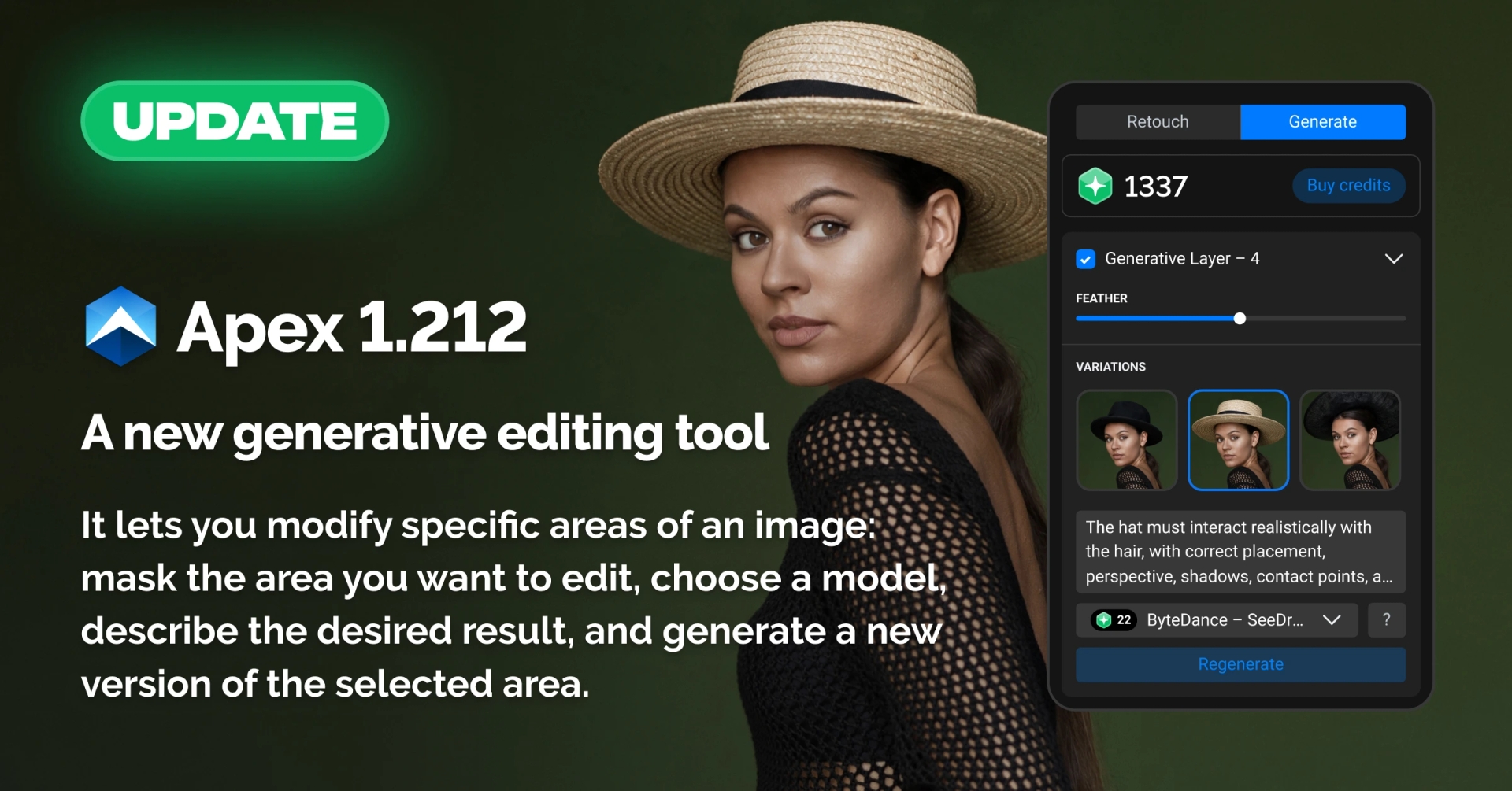
Retouch4me Apex 1.212 introduces Generation, a new tool for generative photo editing.
Generation lets you modify specific areas of an image by painting a mask, choosing a model, describing the desired result, and generating a new version of the selected area. The original image remains untouched, while each generated result is saved on a separate layer.
Generation works independently from Apex’s retouching tools, giving you more flexibility to combine automated retouching with local generative edits in the same application.
Make targeted changes to a photo
Sometimes a photo is almost finished, but one detail still needs to be changed. You may want to replace an object, add something to the frame, or try a different version of a specific area.
Generation is designed for these local edits.
Paint a mask over the area you want to change, select a model, and describe the result you want. You can enter your own prompt or choose from available predefined options.
Apex also takes the surrounding image context into account during generation. The model receives the mask together with a square area that is slightly larger than the selected region. This provides additional context from the surrounding image when generating the new result.
This lets you focus the generation on a specific part of the photo while keeping the rest of the image unchanged.
Try different versions with the same mask
If the first result is not what you were looking for, you can generate another version using the same mask.
Keep the original prompt or adjust it to refine the result. Each generation is created separately, making it easy to compare different versions.
Each additional generation uses tokens.
This can be useful when you are exploring different options and do not know in advance which result will work best with a particular photograph. You can generate several versions and choose the one that fits the image.
Three models for different workflows
Generation currently includes three models:
- Simple Inpaint — a free model for restoring or removing objects.
- Qwen — works with predefined prompts.
- ByteDance SeeDream — allows you to enter your own prompts.
This gives you the option to use a straightforward workflow with predefined prompts or describe a specific change yourself.
Control the edges of the generated area
Generation includes a Feather setting for the mask. It softens the edges of the selected area, helping create a smoother transition between the generated result and the original image.
This can be useful when the selected area is next to a background, clothing, or other image details where a hard transition would be noticeable.
If you are unhappy with a generated result, you can mark it using Not happy.
Keep every generation on its own layer
Each mask creates its own generative layer. You can turn individual layers on or off to compare a generated result with the original image or with other versions.
Enabled generative layers are also taken into account in subsequent generations. This allows you to build changes step by step while keeping previous edits active.
For example, you can first change one part of an image and then generate a change in another area while keeping the first result in the input.
Generated results can also be exported to Photoshop as a separate Generation layer.
This layer-based workflow keeps each change editable and makes it easier to compare results or return to the original version when needed.
Generation and Retouch work independently
Generation and Apex’s retouching tools work independently. You can enable or disable retouching without changing the input used for generation.
The order of operations can still matter when generation affects an area you plan to retouch.
For example, if you retouch a face first and then completely regenerate that face, the previous retouching will not be included in the generation input. You may need to apply the retouching again after generating the new version.
Depending on the task, you can use two workflows:
Generation first, retouching second
Use this workflow when the generated change affects an area that you plan to retouch afterward.
Retouching first, generation second
Use this workflow when the generated change does not affect the areas you have already retouched.
This is particularly important for larger changes. For example, if you completely regenerate a face after applying Heal, the previous Heal result will not be transferred to the newly generated face.
Other changes in Apex 1.212
Improved HEIC to JPEG export
Fixed an issue that could cause the color profile to be applied incorrectly when saving HEIC images as JPEG.
Retouch4me Apex 1.212
With Generation, Apex now combines automated retouching with local generative editing in one application.
You can modify a specific area of a photo, explore multiple versions, keep each result on a separate layer, and continue working with the selected result in Photoshop.
Generation works independently from the retouching tools, so you can choose the workflow that fits the image and the task you are working on.
Update Retouch4me Apex to version 1.212 and try Generation on your next photo.