

Most AI retouching reviews test whether the tool works.
The more useful question — the one that actually changes whether you adopt it — is whether it works at your standard, on your images, at the volume you shoot.
This is a practical review of Arams and the Retouch4me AI plugins: what each plugin produces on real wedding and portrait images, where the current version hits its limits, and what the honest time and cost math looks like.
What Arams is and what problem it’s solving
Arams is a free desktop app (Windows and Mac) that handles your full post-processing workflow in one place: import, cull, color correct, AI retouch, export. It’s not a plugin that lives inside Lightroom or Photoshop — it’s a standalone application that comes before them, or instead of them for volume work.
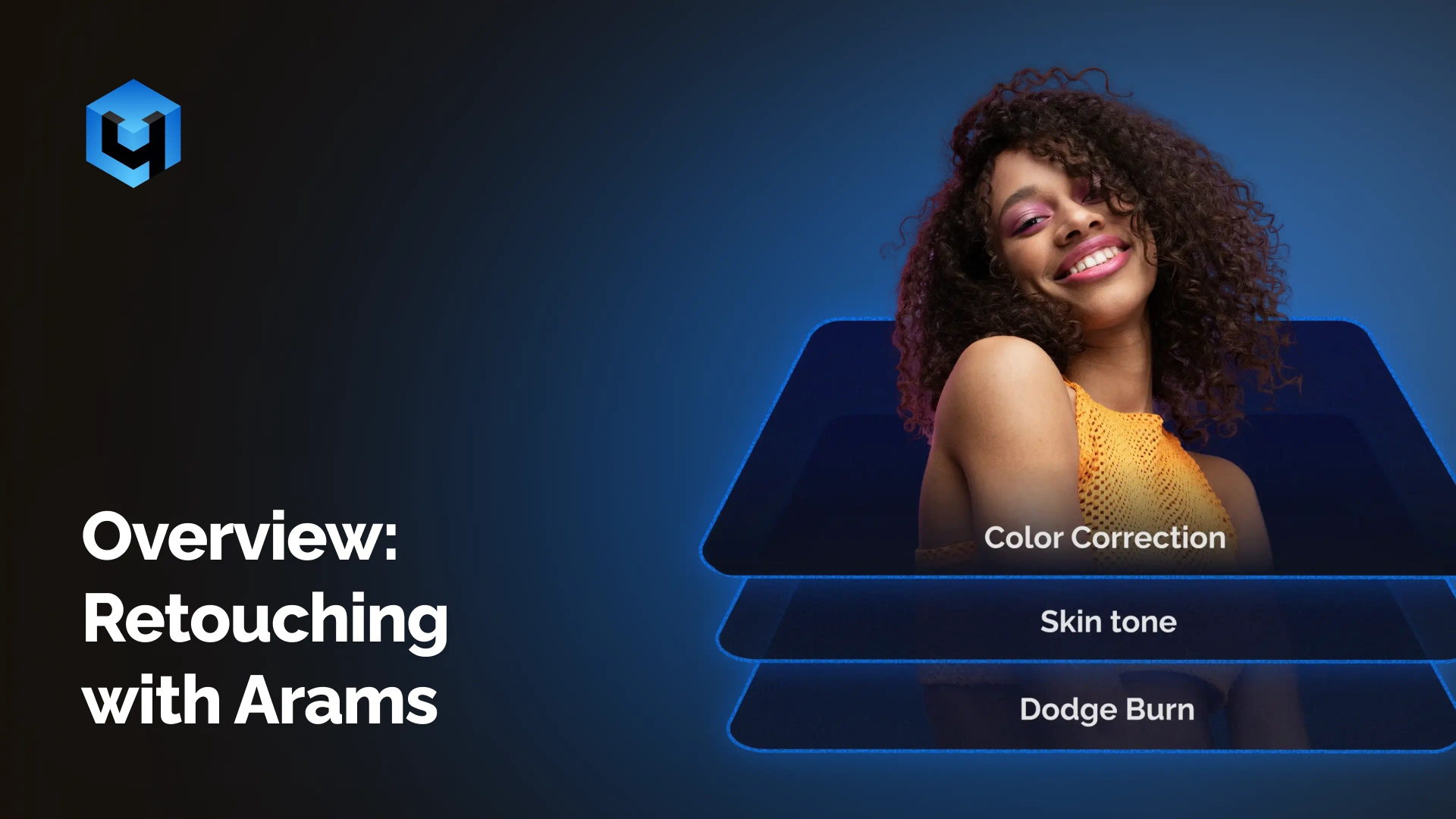
A huge plus of Arams is that you can also enjoy professional retouching to replicate specific manual techniques: skin healing, dodge and burn, fabric smoothing, backdrop cleaning, eye work. Each is a separate algorithm, and each has its own slider for intensity control.
Plugin by plugin: what they actually do
Heal Removes blemishes and pimples using inpainting to reconstruct clean skin beneath the imperfection. On subjects with active breakouts, it’s a meaningful time-saver — the kind of work that would otherwise mean careful clone-stamping on every face.
Mattifier Suppresses reflective skin highlights — the kind of oily shine you get from hot outdoor light, unflattering event flash, or humid conditions.
Dodge & Burn The most consistently useful plugin in the set. Enhances facial dimension by subtly lightening highlights and deepening shadows — the same result that takes 15–30 minutes of manual work per image. Done well, at moderate intensity, it makes flat light look like considered light.
On a bride in even studio-style conditions, D&B at 60% produced results that were genuinely indistinguishable from careful manual retouching. Texture fully intact. No smoothness, no plasticky quality. Just dimension.
Keep male portraits at lower intensity: 25–35%. D&B at full strength on a male face reads as processed rather than groomed.
Skin Tone Normalizes color inconsistency across body parts — corrects hands or arms that have gone slightly blue or yellow relative to the face, which happens regularly in mixed lighting or outdoor events.
Portrait Volumes Adds sculpted dimension to faces by simulating three-dimensional directional light on an image that was shot in flat conditions. The effect is most visible — and most valuable — on overcast outdoor portraits and event photography where bounce flash leaves faces shapeless.
White Teeth Brightens and whitens teeth. Even at conservative values, it contributes to the clean, professional impression of a delivered gallery. Skip it when the subject’s mouth is closed — there’s nothing to affect.
Eye Vessels Removes visible blood vessels from the whites of the eyes. More noticeable in final delivery than you’d expect from culling-size thumbnails. Worth including as a default in most portrait presets.
Eye Brilliance Adds clarity and brightness to irises. Keep it below 30%. At full strength, eyes look biologically implausible. The job here is to add the quality of engagement — not to make eyes look like CGI.
Clean Backdrop Removes marks, dust, and minor imperfections from backgrounds and floors. In a live wedding demo, it cleanly removed visible floor marks at a reception venue — the kind of cleanup that would have taken several minutes of clone-stamping per image. Trained on smooth, even surfaces; works less predictably on complex location backgrounds.
Fabric Smooths wrinkles in clothing and soft furnishings. Works well on wedding gowns, shirt collars, table linens. For images where the background is complex, enable “Exclude Skin” to keep the effect off the subject’s skin.
What the results look like on real images
Bride, even studio-style lighting, female preset: D&B at 60%, Portrait Volumes at 50%, Eye Vessels, White Teeth at 30%, Clean Backdrop. Result: professional retouching that doesn’t read as retouched. Skin texture preserved. The kind of result that would take 15–20 minutes manually per image.
Groom, same conditions, male preset: D&B at 30%, Portrait Volumes at 20%, Fabric on the shirt. Result: subtle, clean. No over-processing. The slight exaggeration Portrait Volumes introduces at higher values on male faces is absent.
Processing time: Approximately 20–30 seconds per image in the cloud. Eight images processed in 5 minutes 56 seconds during a live demo. Set a hundred images running, come back, and review what the AI has done.

The pricing reality
Free: Manual culling, face identity filtering, color labels, color correction, ratings and flags. No subscription. Unlimited use.
Starter Pack — $20: 100 professional cloud retouches + 4,500+ Smart Cull credits. One full wedding gallery covered, with room to test every plugin on real work before deciding on a local license. Subscription includes both retouching and culling credits. Scales with volume. Details on the website.
Perpetual licenses: One-time purchase per plugin, 3 device activations. Unlimited local retouching. See current pricing here.
The honest verdict
The quality ceiling — when you use the right plugins at moderate values — is professional retouching that clients can’t identify as AI. Texture is preserved. Skin looks like it was worked by a careful retoucher, not processed by a filter. The time saving is real: 20–30 seconds per image versus 10–30 minutes.
What Arams doesn’t do: decide which images are worth delivering. That’s still yours. The editorial layer — which moments matter, which expressions are alive, which technically imperfect frames have something irreplaceable — remains human work. The AI takes care of the technical execution after you’ve made those calls.
Download Arams free and test cloud retouching on your own images. The Starter Pack at $20 gives you enough credits to put a real gallery through the system and judge the results before committing.
Want to learn more?
Watch our YouTube series with step-by-step guidance on organising your projects, culling and batch retouching from our team. Or if you prefer long-form content, you can watch the webinar replay on how to process thousands of photos.